

 OC-Mesh
An Emergency Radio Network for Lincoln County, Oregon
When a power outage, disaster, or crisis takes down the internet or mobile network, OC-Mesh lets you send messages anyway.
OC-Mesh is an emergency radio network by citizens of Lincoln County, Oregon, for citizens.
An independent system that lets you stay in contact with family, neighbors, and others on the mesh – even without Wi-Fi, internet, or phone service.
Quick Jump to: What is OC-Mesh | Joining | Devices to Buy | Newsletter | Current Coverage | Credit | Bot Commands
What is OC-Mesh?
OC-Mesh is a Lincoln County initiative that helps people in Lincoln County, Oregon prepare for emergency situations.
When regular internet or mobile networks fail, like due to a power outage, overload, or disaster, OC-Mesh ensures you can still communicate with each other.
The system uses MeshCore, an opensource and free network protocol that lets you send messages and optional GPS location to others on the mesh network.
In addition to emergency preparation it can be also used for Off-Grid Communication, Emergency Response & Disaster Recovery, Outdoor Activities and Fishing Fleet Communications to name a few.
LoRa radio frequencies enable long-range low bandwidth communication with a clear line of site.
You Don’t Need Technical Knowledge
✅ A small emergency radio device that you connect to your phone via Bluetooth
✅ Messages travel via repeaters until they reach the right person
✅ No internet, mobile provider, or any subscription needed
Food Share of Lincoln County is at the forefront of this in our area by sponsoring a county-wide MeshCore system beginning in Newport.
Our Mission
OC-Mesh is dedicated to building a secure decentralized mesh radio networks for text-based communication for emergency, government and civil use. We want to empower our community with a communication tool that does not depend on the internet or cellular networks.
Key Features:
For more information about MeshCore and LoRa radios click the button below.
Joining
Are you interested in joining OC-Mesh? You will need to purchase a LoRa radio device. There are a lot to choose from so we will list devices we have used and recommend in a list here or with the button below. You can also look at the official MeshCore Device page here. There are many other options to get started and it can be a bit daunting at first but we are here to answer questions. Most devices simply connect with Bluetooth to your mobile phone. If you would prefer to purchase a device ready to go without setup or configuration, contact Eric via email with OC-Mesh to arrange that.
Outside of the mesh, we are looking to make an active community on our public Discord Server including a whole section for MeshCore software, hardware and community discussions. So if you have questions, reach out on Discord and we can help you get involved. If you can’t or don’t use Discord you can reach out to Eric via email or signup for our Newsletter below. We will also be putting out short tutorial videos on YouTube soon on how to setup and use devices so stay tuned.
Newsletter Signup

Roles
- Companion: Intended role for end-user devices which provide an interface via the phone or web app (via BLE, USB or WiFi)
- Repeater: Nodes in this role extend the range of a MeshCore Network. It does NOT forward or retransmit every packet it receives.
- Room Server: Turns the node into a simple BBS server for sharing posts. Room servers store message history on them and push the stored messages to users. Room servers allow roaming users to come back later and retrieve message history.
- Room-Peater: A combination of Room Server and Repeater roles. Install the Room Server then enable repeater role via the “set repeat {on|off}” command. Not recommended.
Radio Settings
Once you get hardware you need to use these settings to connect to other nodes in our area. More information about these settings can be found in the MeshCore documentation.
These settings can be found in the MeshCore app listed as USA/Canada (Recommended)
| Setting | Value |
|---|---|
| Frequency | 910.525 MHz |
| Bandwidth | 62.5 kHz |
| Spreading Factor | 7 |
| Coding Rate | 5 |
Repeaters
Meshcore works well with neighborhood repeaters, increase the range and reliability of OC-Mesh by setting up your own repeater. We are looking to coordinate repeater setup for optimal network performance so be sure to reach out to OC-Mesh on Discord or email to be a part of the network infrastructure.
Channels
Hashtag topic keys are automatically calculated by the system. The keys below are included to help users on devices that cannot type the # (hash) symbol or lack the key calculation functionality. Anyone can start a Hashtag topic, these are just examples.
We will use ‘OC-‘ for emergency and weather to keep our messages relevant to us.
| Topic | Key |
|---|---|
| Public Channel | 8b3387e9c5cdea6ac9e5edbaa115cd72 |
| #oc-mesh | 2ec3eb4819b0807bc94336b8e3a3c06a |
| #oc-weather | 97e1df5c3426f97233542c9596e70117 |
| #oc-emergency | 7f6ba243091db546de0a84aefb7eba82 |
| #lincoln-city | 3dc5fb855e04bd24cdaa1684d0a100bc |
| #depoe-bay | bf4c34568c450aeb2d587404110abb28 |
| #newport | 97102754332c95b8fd7d14a5e4c0fe43 |
| #waldport | 52d4ba1ce9db8a725031757145a39d64 |
| #yachats | f1863b45bb205c3c882e084b5b2ccd97 |
| #protest | 195e9167baf010c4538d8532b6d7296e |
| #testing | cde5e82cf515647dcb547a79a4f065d1 |
OC-Mesh is still in it’s infancy. We are looking for HAM operators, tinkerers, tech folks and other people with knowledge to help us in this endeavor. You can reach out to Eric at Food Share of Lincoln County here or on the OC-Mesh Discord.
Current OC-Mesh Coverage
MeshMapper
Using MeshMapper we’ve done a preliminary coverage map of the one Repeater we have operational 24/7. All colored blocks indicate a connection to OC-Mesh.
Want to see your node or repeater on the map? See above for how to join OC-Mesh.
Cascadia Mesh Live Network Map
Waev Network Telemetry
MeshCore on Youtube

Recommended Devices
Most of these can be obtained from Amazon and other online retailers, ranging from $30 to $120. If you would prefer to purchase a device ready to go without setup or configuration, contact Eric via email with OC-Mesh to arrange that.
| Image | Name | Cost | Phone Needed | Assembly Needed | Screen | GPS | Battery |
|---|---|---|---|---|---|---|---|
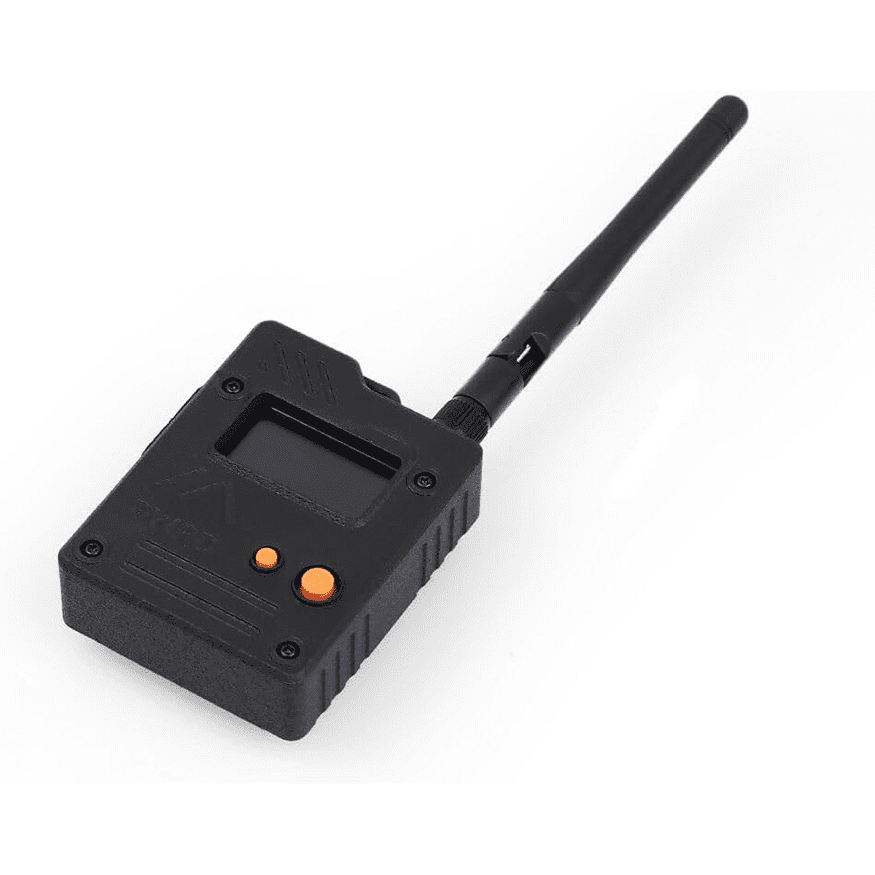 | Wio Tracker L1 Pro | $ | Yes | No | Yes | Yes | 2000mAh |
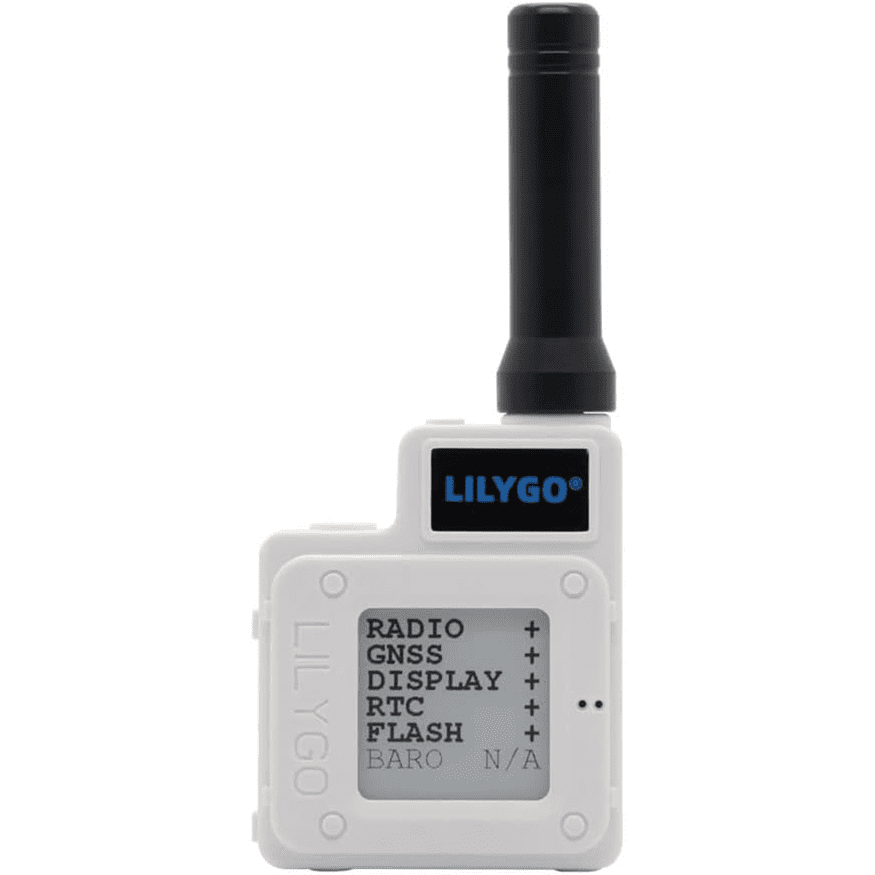 | LILYGO T-Echo | $$ | Yes | No | Yes | Yes | 850mAh |
 | SenseCAP Card Tracker T1000-E | $ | Yes | No | No | Yes | 700mAh |
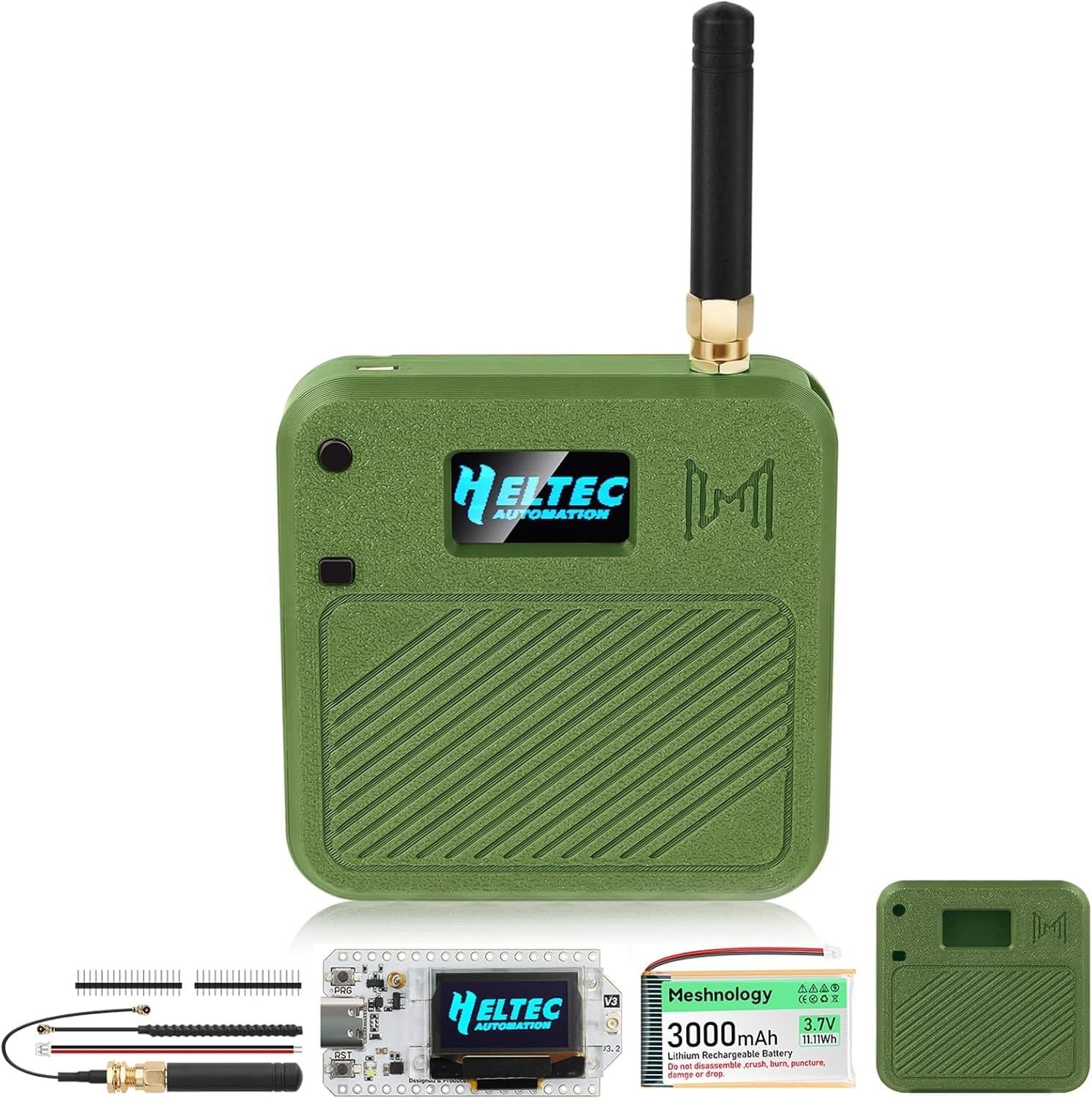 | Meshnology w/ Heltec V3 | $ | Yes | Yes | Yes | Yes | 3000mAh |
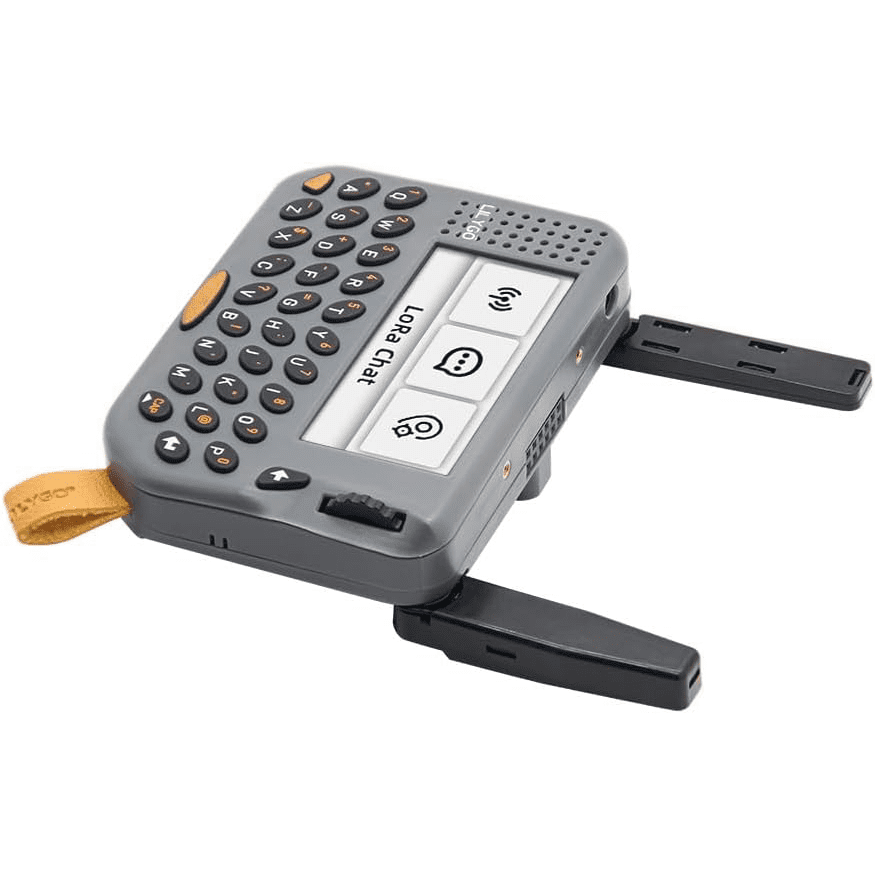 | LILYGO T-Lora Pager | $$$ | No | No | Yes | Yes | 500mAh |
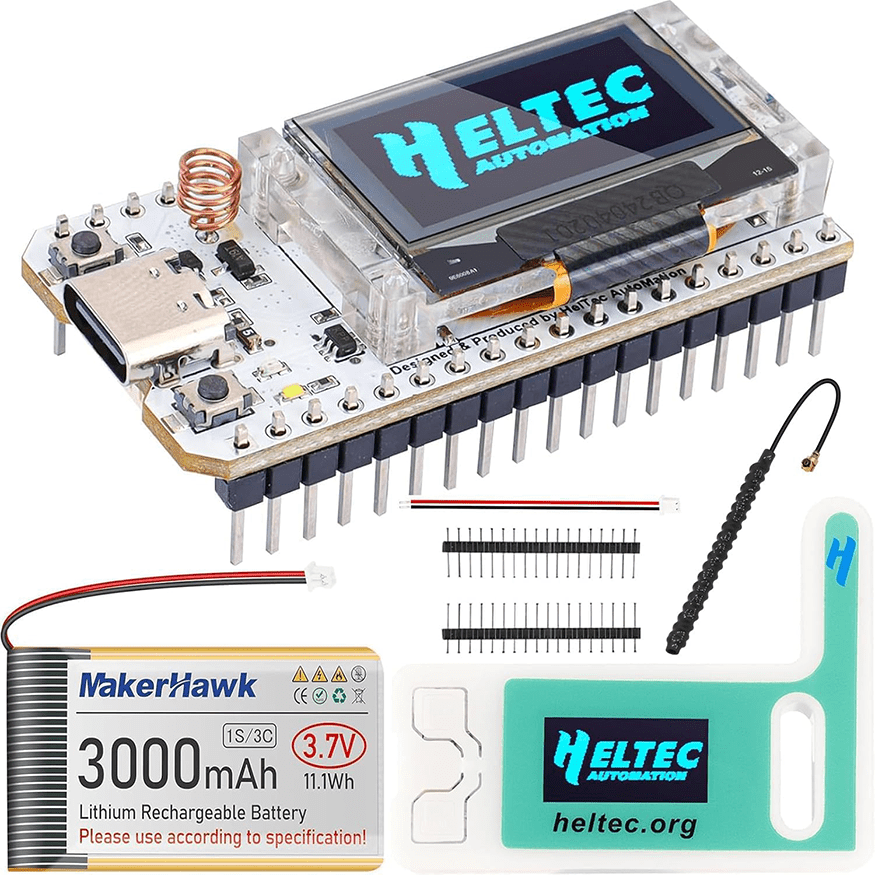 | MakerHawk w/ Heltec V3 | $ | Yes | Yes | Yes | Yes | 3000mAh |
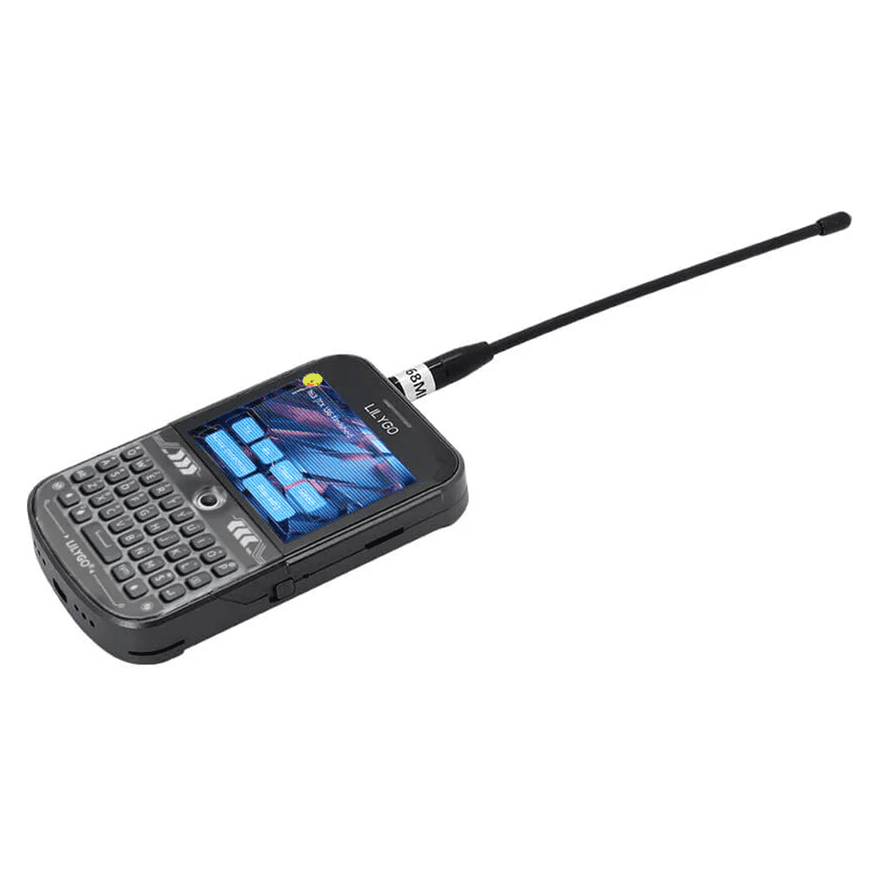 | LILYGO T-Deck Plus | $$$ | No | No | Yes | Yes | 2000mAh |
You can also check the Official MeshCore website for recommendations.
Credit to!
Thank you so much to the following for their hard and dedicated work on this technology. I could not have done this with out them and the knowledge and brilliance they bring to this. And thank you to each who helped, posted and solved for everyone.
- Scott Powell for Meshcore in General and Ripple Software
- Liam Cottle for Meshcore in General and Client App Support
- Rastislav Vysoky for Meshcore Web Flasher
- Andy Kirby for MeshOS Software
- Michael Hart for MQTT and Meshcore Analyzer
- Cisien for MQTT
- Agessaman for Meshcore-Bot
- Cascadia Mesh for guidance and support
- WirelessRocks for guidance and support
We also want to call out local businesses and non profits that have helped with getting this going, thank you!
- Food Share of Lincoln County
- Gleens of the Beach
Bot Commands
Table of Contents
Basic Commands
Information Commands
Emergency Commands
MeshCore Utility Commands
Command Syntax Help
Additional Notes
Basic Commands
testort
Test message response to verify bot connectivity and functionality.
Usage:
test – Basic test response
test – Test with optional phrase
Examples:
test
t hello world
Response: Confirms message receipt with connection information.
pingSimple ping/pong response to test bot responsiveness.
Usage:
ping
Response: Pong!
helpShow available commands or get detailed help for a specific command.
Usage:
help – List all available commands
help <command> – Get detailed help for a specific command
Examples:
help
help wx
help repeater
Response: Lists commands or provides detailed information about the specified command.
helloGreeting response. Also responds to various greeting keywords.
Usage:
hello
hi
hey
howdy
greetings
Response: Friendly greeting message.
cmdList available commands in compact format.
Usage:
cmd
Response: Compact list of all available commands.
Information Commands
channels
List and manage hashtag channels on the MeshCore network.
Usage:
channels – List general channels
channels list – List all channel categories
channels <category> – List channels in a specific category
channels #channel – Get information about a specific channel
Examples:
channels
channels list
channels emergency
channels #general
Response: Lists available channels with their descriptions and usage statistics.
wx <zipcode>
Get weather information for a US zip code using NOAA data.
Aliases: weather, wxa, wxalert
Usage:
wx <zipcode>
weather <zipcode>
wxa <zipcode>
wxalert <zipcode>
Examples:
wx 98101
weather 90210
wxa 10001
Response:
Current weather conditions, forecast for tonight/tomorrow, and active weather alerts. Includes:
Current conditions (temperature, humidity, wind, etc.)
Short-term forecast (tonight, tomorrow)
Weather alerts if any are active
Note: Weather alerts are automatically included when available.
gwx <location>
Get global weather information for any location worldwide using Open-Meteo API.
Aliases: globalweather, gwxa
Usage:
gwx <location>
globalweather <location>
gwxa <location>
Examples:
gwx Newport
gwx Seattle, Washington
gwx New York
globalweather London
gwx 35.6762,139.6503
Response:
Current weather conditions and forecast for the specified location, including:
Forecast for today/tonight and tomorrow
Current temperature and conditions
Feels-like temperature
Wind speed and direction
Humidity
Dew point
Visibility
Pressure
aqi <location>
Get Air Quality Index (AQI) information for a location.
Usage:
aqi <location>
aqi <city>
aqi <city>, <state>
aqi <city>, <country>
aqi <latitude>,<longitude>
aqi help
Examples:
aqi Lincoln City
aqi greenwood
aqi vancouver canada
aqi 47.6,-122.3
aqi help
Response:
Air quality data including:
Health recommendations
US AQI value and category
European AQI (if available)
Pollutant concentrations (PM2.5, PM10, Ozone, etc.)
airplanes [location] [options] / overhead [lat,lon]
Get aircraft tracking information using ADS-B data from airplanes.
Aliases: aircraft, planes, & overhead
Usage:
airplanes
airplanes here
airplanes <latitude>,<longitude>
airplanes [location] [options]
overhead
overhead <latitude>,<longitude>
Special Command: overhead
Returns the single closest aircraft directly overhead
Uses companion location from database
If companion location not available, prompts user to specify coordinates
Always returns one aircraft sorted by distance (closest first)
Location Options:
No location: Uses companion location (if available), otherwise bot location
here: Uses bot location from config
<lat>,<lon>: Uses specified coordinates (e.g., 47.6,-122.3)
Filter Options:
radius= – Search radius in nautical miles (default: 25, max: 250)
alt=- – Filter by altitude range in feet (e.g., alt=1000-5000)
speed=- – Filter by ground speed range in knots
type= – Filter by aircraft type code (e.g., B738, A321)
callsign= – Filter by callsign pattern
military – Show only military aircraft
ladd – Show only LADD aircraft
pia – Show only PIA aircraft
squawk= – Filter by transponder squawk code
limit= – Limit number of results (default: 10, max: 50)
closest – Sort by distance (closest first)
highest – Sort by altitude (highest first)
fastest – Sort by speed (fastest first)
Examples:
airplanes
airplanes here
airplanes 47.6,-122.3
airplanes radius=50
airplanes alt=10000-40000
airplanes type=B738
airplanes military
airplanes callsign=UAL limit=5
airplanes 47.6,-122.3 radius=25 closest
Response:
Single aircraft: Detailed format with callsign, type, altitude, speed, track, distance, bearing, vertical rate, and registration
Multiple aircraft: Compact list format with callsign, altitude, speed, distance, and bearing
sun
Get sunrise and sunset times for the bot’s configured location.
Usage:
sun
Response: Sunrise and sunset times, day length, and solar noon.
Note: Uses the bot’s configured default location (bot_latitude and bot_longitude in config.ini), not the user’s location from their advert.
moon
Get moon phase information and moonrise/moonset times for the bot’s configured location.
Usage:
moon
Response: Current moon phase, moonrise/moonset times, and illumination percentage.
Note: Uses the bot’s configured default location (bot_latitude and bot_longitude in config.ini), not the user’s location from their advert.
solar
Get solar conditions and HF band status.
Usage:
solar
Response:
Solar activity information including:
Solar activity summary
Solar flux
Sunspot number
A-index and K-index
HF band conditions (Open/Closed/Marginal)
solarforecast or sf
Get solar panel production forecast for a location.
Usage:
sf <location|repeater_name|coordinates|zipcode> [panel_size] [azimuth] [angle]
solarforecast <location> [panel_size] [azimuth] [angle]
Parameters:
location – Location name, repeater name, coordinates (lat,lon), or zipcode
panel_size – Panel size in watts (optional, default: 100W)
azimuth – Panel azimuth in degrees, 0=south (optional, default: 180)
angle – Panel tilt angle in degrees (optional, default: 30)
Examples:
sf seattle
sf seattle 200
sf seattle 200 180 45
sf 47.6,-122.3 150
sf repeater1 100 180 30
Response:
Solar panel production forecast including:
Total daily kWh estimate
Daily production estimate
Hourly production breakdown
Peak production time
hfcond
Get HF band conditions for amateur radio.
Usage:
hfcond
Response:
HF band conditions including:
Propagation conditions
Band status (Open/Closed/Marginal)
Solar flux
A-index and K-index
satpass <NORAD>
Get satellite pass information for a satellite by NORAD ID.
Usage:
satpass <NORAD> – Get radio passes (all passes above horizon)
satpass <NORAD> visual – Get visual passes only (must be visually observable)
satpass <shortcut> – Use predefined shortcuts
Shortcuts:
Weather Satellites:
noaa15, noaa18, noaa19, metop-a, metop-b, metop-c, goes16, goes17, goes18
Space Stations: iss, tiangong, tiangong1, tiangong2|
Telescopes: hst, hubble
Other: starlink
Examples:
satpass 25544
satpass iss
satpass iss visual
satpass noaa19
satpass hubble visual
Response:
Upcoming satellite passes including:
Visual pass indicator (if applicable)
Pass start/end times
Maximum elevation
Duration
Azimuth at start/end
Emergency Commands
alert <location> [all]
Get active emergency incidents for a location.
Usage:
alert <city|zipcode|street city|lat,lon|county> [all]
Parameters:location – City name, zipcode, street address with city, coordinates, or county nameall – Show all incidents (default: shows most relevant incidents)
Examples:
alert seattle
alert 98101
alert main street seattle
alert 47.6,-122.3
alert seattle all
alert king county
Response:
Active emergency incidents including:
Severity level
Incident type and description
Location
Agency
Time
MeshCore Utility Commands
path or decode or route
Decode and display the routing path of a message.
Usage:
path
decode
route
Response: Shows the complete routing path the message took through the mesh network, including all intermediate nodes.
trace and tracer
Run a link trace for diagnostics. trace sends a trace along the given path (return may not be heard by the bot). tracer builds a round-trip path so the bot’s radio hears the return.
Usage:
trace [path] – Trace along path (comma-separated 2-char hex, e.g. 01,7a,55). No path = use your message’s incoming path.
tracer [path] – Same but path is converted to round-trip (e.g. 01,7a,55 → 01,7a,55,7a,01) so the bot hears the response.
Examples:
trace 01,7a,55
tracer 01,7a,55
tracer
With no path, both use the path your message took to reach the bot (like the test command).
Config:
[Trace_Command] — enabled, maximum_hops, trace_mode (one_byte/two_byte), timeout_base_seconds (default 1.0), timeout_per_hop_seconds (default 0.5), trace_retry_count (default 2 attempts), trace_retry_delay_seconds (default 1.0), update_graph_one_byte, update_graph_two_byte. Total wait per attempt = base + (hops × per_hop). On failure, waits then retries up to trace_retry_count times.
Response: Compact trace result: tag, hop count, SNR per hop, and optional graph update when enabled.
prefix <XX>
Look up repeaters by two-character prefix.
Usage:
prefix <XX> – Look up repeaters with the specified prefix
prefix <XX> all – Include all repeaters (not just active ones)
prefix refresh – Refresh the prefix cache
prefix free or prefix available – Show available prefixes
Examples:
prefix 1A
prefix 2B all
prefix refresh
prefix free
Response:
List of repeaters matching the prefix, including:
Location (if available)
Repeater name
Status (active/inactive)
Last seen time
stats
Show bot usage statistics for the past 24 hours.
Usage:
stats – Overall statistics
stats messages – Message statistics
stats channels – Channel statistics
stats paths – Path statistics
Examples:
stats
stats messages
stats channels
stats paths
Response:
Usage statistics including:
Routing path information
Total messages processed
Commands executed
Channel activity
multitest or mt
Listen for 6 seconds and collect all unique paths from incoming messages.
Usage:
multitest
mt
Response: List of all unique routing paths discovered during the 6-second listening period.
Command Syntax Help
Prefix
Commands can be used with or without the ! prefix:
test or !test – Both work
wx 98101 or !wx 98101 – Both work
Direct Messages
Some commands work in both public channels and direct messages, while admin commands typically require direct messages for security.
Rate Limiting
The bot implements rate limiting to prevent spam. If you send commands too quickly, you may receive a rate limit message. Wait a few seconds before trying again.
Case Sensitivity
Most commands are case-insensitive:
- TEST and test work the same
- WX 98101 and wx 98101 work the same
Getting Help
Use the help command to get more information:
- help – List all commands
- help <command> – Get detailed help for a specific command
Additional Notes
Location Requirements
Some commands use location data:
sun and moon – Use the bot’s configured default location (bot_latitude and bot_longitude in config.ini), not the user’s location from their advert
solar – Does not require location (provides global solar conditions)
solarforecast – Requires a location parameter (location name, repeater name, coordinates, or zipcode)
wx – Requires a zipcode parameter
gwx – Requires a location parameter
aqi – Requires a location parameter
Weather Data
wx uses NOAA API (US locations only)
gwx uses Open-Meteo API (global locations)
Both provide current conditions and forecasts